The emails you send say something about you and your business. Whether you are contacting a new customer, replying to a client or sending a business update, your email should look professional. A good signature tells people who you are and how to get in touch with you.
It does not take hours to make one. A Signature Generator lets you make a clean, attractive signature without any design or coding skills. Add your name, title, company, phone number, website and social media links in a matter of minutes.
With a simple tool, you are able to create a signature that matches your brand and makes every email look more professional. In this guide we’ll break down how these tools work, what details to include, and how Tapect can help you build a stronger business identity.
What Is a Signature Generator?
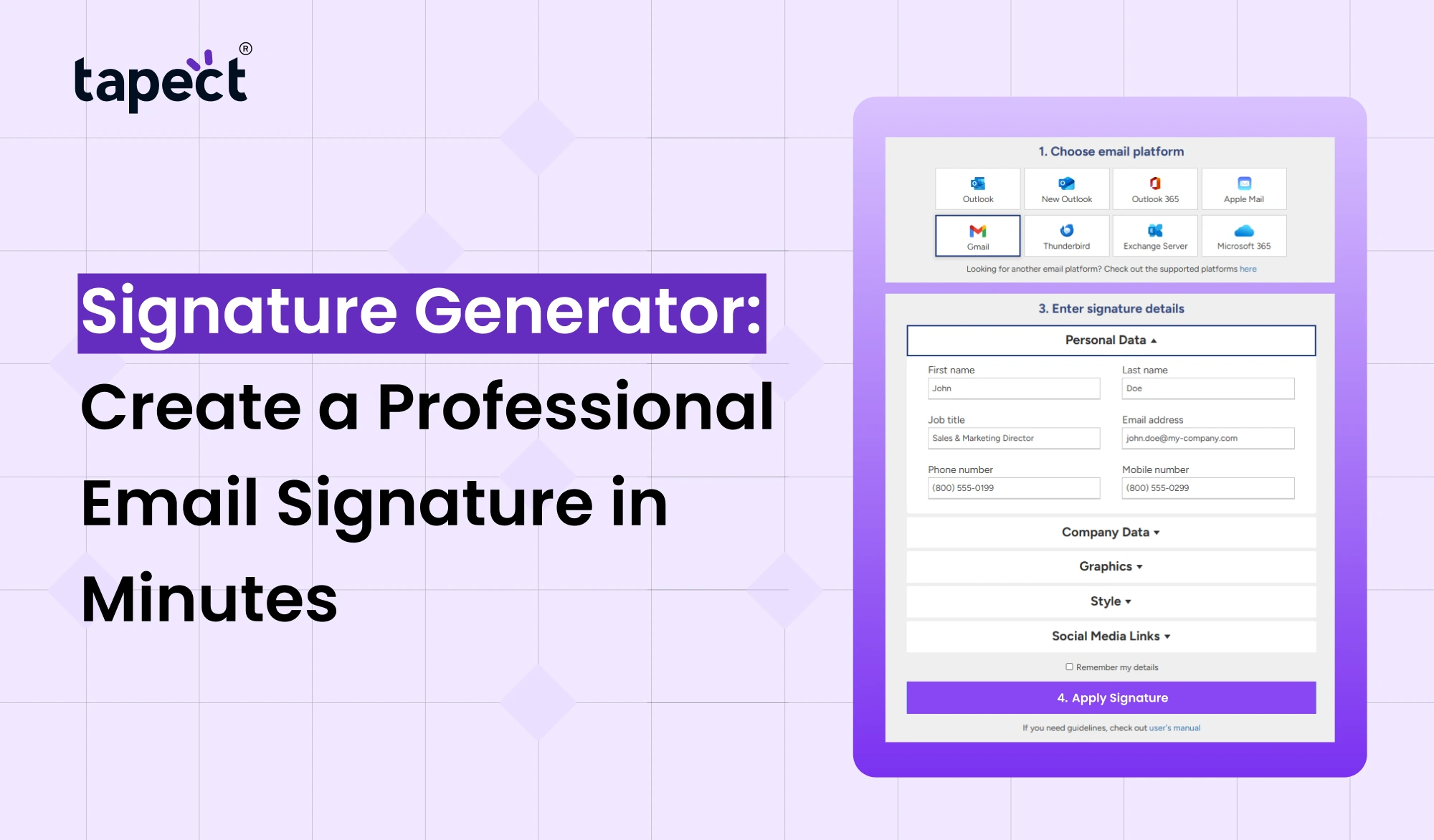
Signature Generator is an online tool to create professional email sign-off with your personal or business details. Instead of having to write your contact information at the end of every email, you can create one design and use it every time you send a message.
Most tools come with pre-made templates you can customise. You can pick a layout, change colours, add your company logo, and add links to your website or social media profiles.
Here are some facts you can add:
- Full name and professional title
- Company or business name
- Contact number and email address
- Website link
- Company logo or profile photo
- Social media profile links
- Business address
Good design makes everything easy and simple to read. It also means people can find your contact details without digging through old emails.
Why Do You Need a Professional Email Signature?
An email is often the first contact a customer or business partner has with your company. A professional sign-off makes your message look complete and gives people a way to find out more about you.
Here are some reasons why it’s important.
1. Builds a Professional Image
A good Email Signature makes your email look clean and organised. It shows you care about the little things and take your business seriously.
Your name, position, company details and website are included in the email that you send to the customers. The customers will know who is emailing them. This is a better first impression.
2. Makes Contact Easy
You don’t want customers looking for your phone number or for your website. Put these details at the bottom of your email and it’s easier for them to contact you.
A professional Email Signature can also have clickable phone numbers, email addresses, and website links. It saves time for you and your customers.
3. Promotes Your Business
Every email you send is a little branding opportunity. Your company logo, website and social media links help people find your business.
With a Signature Generator, you are able to generate a signature that matches your brand colours and style. It helps your business sound the same from one conversation to the next.
4. Saves Time
Repeating the writing of your contact information is not a good use of time. When you create a design, you can add it to your email account and use it automatically.
You can also update your details whenever your job title, phone number or website changes.
How to Create an Email Signature Using a Signature Generator
Designing a professional design is easy when you follow the right steps. No graphic design experience is necessary to get going.
Step 1: Choose a Suitable Template
Choose a layout that suits your work or business. Some templates are plain and formal, others have logos, photos and social media icons.
Opt for a clean design that looks good on desktop and mobile screens.
Step 2: Add Your Personal Details
Please enter your basic information, such as your name, job title, company name and contact details.
Get all the details right. A little typo in your phone number or website link can make it hard for customers to find you.
Step 3: Add Your Company Logo
Your logo gives people a way to recognise your business. Upload a logo that is crisp and fits in naturally where you place it.
Be careful with images or graphics. Too many images or graphics can make your emails look cluttered.
Step 4: Customize the Design
Choose colours and fonts consistent with your company identity. Keep it simple in design and use readable text.
The signature maker allows you to customise the layout, font size, colours and spacing no tech knowledge needed.
Step 5: Add Social Media Links
If you have a business on LinkedIn, Facebook, Instagram and other social platforms then you can add clickable profile links.
This gives customers another avenue to engage with your brand and learn about your services.
Step 6: Copy and Install Your Signature
Once your signature is ready, copy the generated signature and add it to your email settings.
Send a test email to yourself before using it for business communication. Make sure the links lead somewhere and the layout looks good on mobile.
Best Features to Look for in a Signature Generator
Not all online tools are created equal. Before you pick one, make sure it has the features you really need.
Some useful features are :
- Ready-made templates: Choose from different professional layouts.
- Easy editing: Change text, colors, fonts, and spacing quickly.
- Logo support: Add your company logo or personal photo.
- Social media links: Connect your professional profiles.
- Mobile-friendly design: Make sure your signature works on smartphones.
- Clickable contact details: Allow people to call, email, or visit your website.
- HTML support: Use a compatible format for email platforms.
- Easy installation: Copy and add your design without complicated steps.
A good Signature Generator should simplify the entire process. You should be able to make a useful design without spending too much time learning the tool.
Email Signature Generator HubSpot: Is It Worth Using?
If people want a free way to create professional email signatures, they may look at the email signature generator hubspot. HubSpot provides a tool where users can select a template and add in their own or company information.
The hubspot signature generator is a great choice for freelancers, small businesses, sales teams, and professionals that want a simple design.
Things to think about that might be useful are:
- Easy-to-use templates
- Personal and company information fields
- Social media profile links
- Custom colors and branding options
- A simple process for copying your finished design
Before you decide on a tool, check out its existing features and ensure the final design is compatible with your email platform.
Common Mistakes to Avoid When Creating an Email Signature
An email signature should make your email easier to understand, not harder to read. Some people go too detailed and end up with a messy design.
Avoid these common errors:
1. Adding Too Much Information Only add what people need to know. With too many links and contact numbers, your design can become confusing.
2. Too Much Colour: Use no more than two or three brand colours. This keeps your design tidy.
3. Using Hard-To-Read Fonts: Fancy fonts might look nice, but are hard to read on smaller screens.
4. Use Large Images Large images can affect how your signature appears in different email apps.
5. Not testing links: Always test your website, phone number and social media links before using your design.
6. Ignoring Mobile Users: Many people read emails on their mobile phones. Make sure your layout works on small screens.
How Tapect Helps You Create a Stronger Digital Identity
A professional email presence is a good start, but your business identity shouldn’t stop there. Customers might also want to save your contact details, visit your website, or follow up with you after a meeting.
Tapect can help with that.
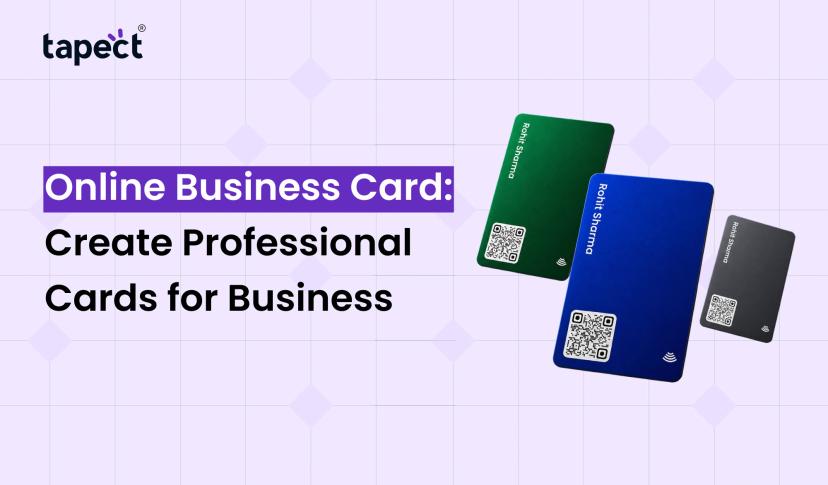
Tapect is a modern solution for sharing business contact information based on NFC technology and QR codes. You can share your professional details with a digital business card, instead of traditional paper cards.
How Tapect can support your business:
Easy contact sharing Tap or scan a QR code to share your professional information.
Provide your contact information in a modern format.
Quick access: Let customers see your business profile and contact info.
More networking: Make it easier to connect with clients, partners, and potential customers More networking:
Easy updates: Update your shared business information without new cards.
An nfc business card can help with networking during meetings, events and business conferences. It makes it easy for people to put your contact info on their phones.
A digital business card also allows you to share your professional profile without the need to carry around a stack of printed cards.
Combine your email details and Tapect profile to create a consistent business identity across different communication channels.
Who Should Use a Signature Maker?
A professional signature is useful for pretty much anyone who sends out emails on a regular basis.
Here are a few examples:
Business Owners: Add details about your business and make your customer communications look professional.
Freelancers: Share your name, services, portfolio and contact information.
Sales Professionals: Make it simple for potential customers to get in touch with you.
Marketing Teams: Keep your business email branding consistent.
Job Seekers: Please provide your name and professional contact information when contacting recruiters.
Agencies: Give employees a consistent email design that represents the company brand.
Whether working solo or managing a large team, a Signature Generator can help you to organise your daily communications.
FAQs
1. What is Signature Generator?
A Signature Generator is an online tool that helps you to create a professional email signature. You can add your name, job title, contact details, company logo and social media links.
2. Is there a way to make an email signature for free?
Yes. There are many online tools that offer free templates and basic customisation options. You can design without paying for professional graphic design services.
3. Do I need to code to create an email signature?
No. Most of the tools have readymade templates and basic editing options. You just enter your info, customise the design and copy it into your email settings.
4. Can I use my signature on Gmail and Outlook?
Yes. Most tools support popular email platforms like Gmail and Outlook. But the setup process and formatting may differ on different platforms.
5. What should I put in my email signature?
Add your full name, job title, company name, phone number, website and key social media links. You can also add your logo.
6. Is HubSpot a good choice for email signature creation?
Yes. HubSpot has a simple tool with templates already in place and you can edit them. It can be a good option for people who want a simple professional design.
7. How can my email signature help my business?
Yeah. Your signature can include your website, company name, logo and social media links. Such details will help people locate your business when they get your emails.
8. What’s the difference between an email signature and a digital business card?
An email signature is a block of text that is appended at the end of your email messages and includes your contact details. A digital business card is a shareable professional profile that people can access via a link, QR code or NFC technology.
Conclusions
While a professional email sign-off may seem like a small part of your communication, it can make a big difference to how people perceive you and your business. This makes it easy for customers to find your contact information, learn about your company, and connect with you.
With a Signature Generator you can make a clean, professional design in minutes. Pick a good template, add the right information, use your brand colours, and test it all out before sharing.
If you want to take your professional identity beyond email, check out Tapect. NFC and QR based solutions make it easy and convenient for sharing business contact details.
Want to make business networking easier? Visit Tapect today and find our digital business cards and NFC solutions to give your brand a modern identity.
 20 Nov 2026
 business