QR codes are part of our daily life now. You see them on menus, posters, product boxes, tickets, websites and business cards. You can open a website, view a menu, save a contact, make a payment or visit a social media page – all with one quick scan.
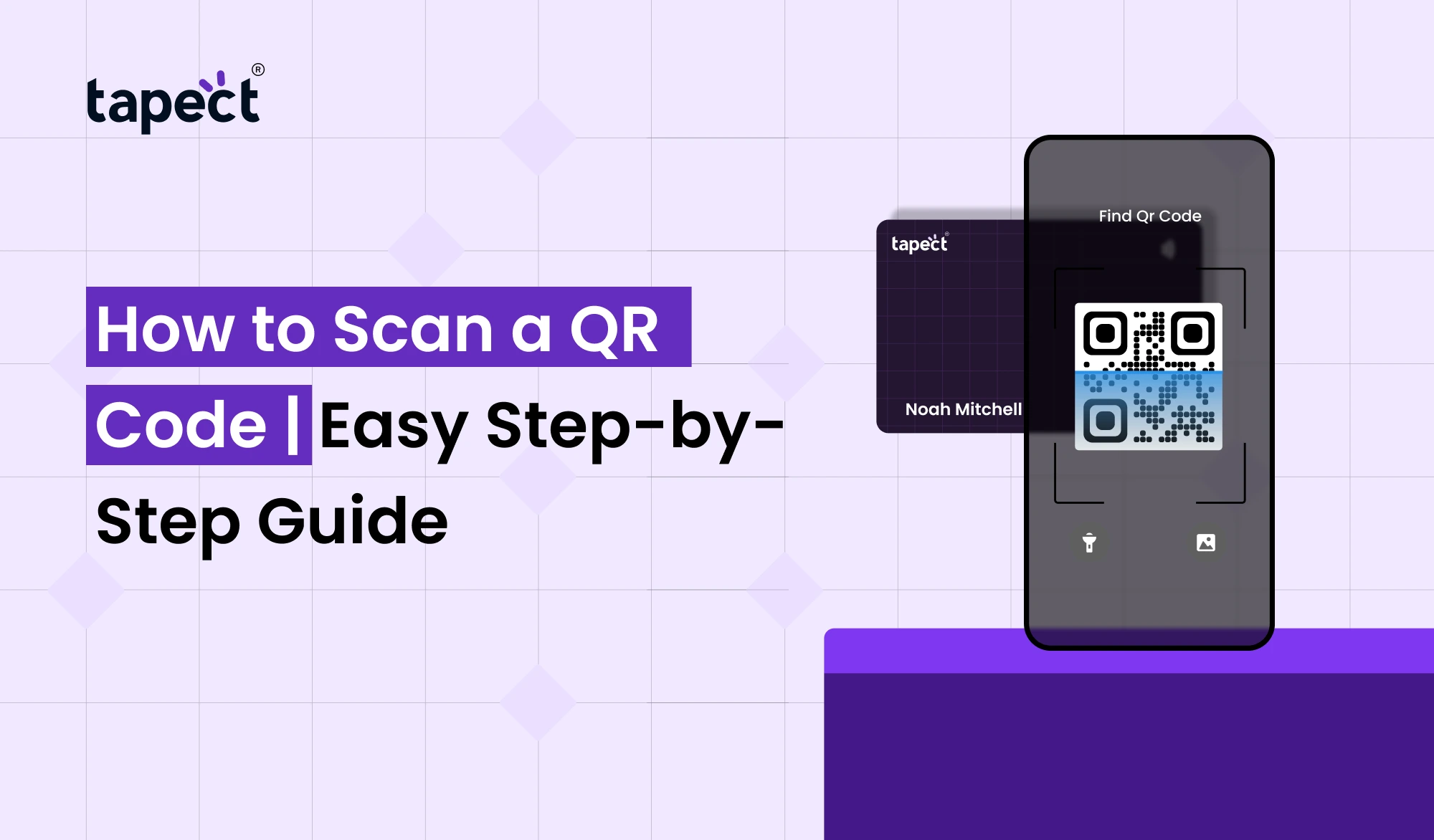
If you have never used one before you might ask, How to Scan a QR Code? The process is much simpler than it sounds. Most modern smartphones can read a QR code with the camera built into the phone.
We’ll go over how to scan a QR Code on different phones, how to scan a code from a photo, and how to stay safe when using QR codes. We also discuss how businesses may utilise QR codes with Tapect for seamless networking.
What Is a QR Code?
A QR code is a square-shaped code that encodes digital information. Your smartphone camera can read this pattern and link you to the information behind it.
A QR code may direct you to:
- A website
- A payment page
- A restaurant menu
- A social media profile
- Contact information
- A product page
- A digital business card
All you need to know How to Scan a QR Code is a smartphone with a camera and a QR Code Scanner feature.
How to Scan a QR Code on iPhone
Most modern iPhones can natively read QR codes with the Camera app. Usually you don’t need to install other app.
Here are the easy steps to take:
- Open the Camera app.
- Point your camera toward the QR code.
- Keep the complete code inside the frame.
- Hold your phone steady for a moment.
- Wait for the link or notification to appear.
- Tap the notification to open it.
This is one of the most easiest ways to learn How to Scan a QR Code.
Ensure that the QR code is clearly visible. If the area is too dark, try moving to a better lit area.
How to Scan QR Code on Phone
The process is the same for most Android phones. Some devices scan codes automatically using the camera, while others use Google Lens.
Try these:
- Open your Camera app.
- Point it at the QR code.
- Keep the phone steady.
- Wait for a link or pop-up.
- Tap the link to continue.
If the code is not recognised by your camera, open Google Lens or another trusted QR Code Scanner.
Once you know where the scanning feature is located, learning how to scan QR Code on Phone is a breeze.
How to Scan a QR Code from a Photo
Sometimes you receive a QR code in form of a screenshot or a picture. You don’t have to have another phone to scan it.
Open the image in your phone gallery and look for a Lens or scan option. Your phone may detect the code and display the link it’s associated with.
It’s useful when someone sends you a QR code via WhatsApp, email or social media.
This is another helpful method for when you want to learn How to Scan a QR Code without having a printed code in front of your camera.
How to Use a QR Code Safely
QR codes are handy, but you should always check where they go. Any other online link, including via QR code, can be used to open a fake website.
Before you open a page, check the website address. Don’t click on any suspicious links asking for your password, bank account information or other private details.
Remember these safety tips:
- Scan codes from trusted sources.
- Check the website address before entering information.
- Avoid downloading unknown files.
- Do not enter passwords on suspicious pages.
- Use a trusted QR Code Reader when needed.
It is just as important to know how to scan a QR Code safely as it is to know how to scan it.
How to Scan a QR Code on a Business Card
The rise of QR codes has been seen in professional networking. A qr code business card can link a printed card with an online profile.
Instead of manually entering a phone number or email address, someone can simply scan the code to view your information.
A qr code business card could contain:
- Name and job title
- Phone number
- Email address
- Website
- Social media profiles
- Company information
- Portfolio links
This makes QR Code Scanning useful at meetings, conferences, trade shows and networking events.
How Tapect Uses QR Codes for Networking
Tapect provides modern digital networking solutions to help professionals share their business information.
A Tapect profile has all the key contact and business info on one shareable page.
A digital business card could contain:
- Your name and job title
- Phone and email
- Company website
- Social media links
- Business information
- Portfolio or useful links
Tapect is a qr code business card that allows people to quickly access your profile.
Tapect also supports using a nfc business card for people who want to share contact info by tapping You can mix QR and NFC options to provide people with more than one way to connect.
QR Code Scanner vs QR Code Reader
You might notice QR Code Scanner and QR Code Reader for similar tools. Both are designed to recognise a QR code and to show the data stored in it.
Your phone’s built-in camera may already function as a QR Code Scanner. Some apps also offer additional features like saving scan history or opening various types of content.
Often, the tool your phone comes with will be just fine for normal, everyday use.
Common QR Code Scanning Problems
Sometimes the QR code will not scan at the first try. There are a few simple reasons it can happen.
The code is either to small, blurry, broken, printed with a bad contrast. Screen reflections can also complicate the scanning.
Try these quick fixes :
- Clean your camera lens.
- Move the phone slightly closer.
- Move the phone slightly farther away.
- Improve the lighting.
- Make sure the full code is visible.
- Try another QR Code Reader.
These steps will resolve many common problems scanning QR Codes.
How to Use a QR Code for Contact Sharing
Learn How to Use a QR Code for Business Networking, Begin with a Good Landing Page
Instead of linking people to a random home page, link the code to a page where they can easily contact you.
For instance, you can connect your QR code to a digital business card. Visitors will then be able to see your details and decide whether to call, email, visit your website or connect via social media.
QR code can make contact sharing faster and reduce the amount of typing needed.
QR Code and NFC Business Card
Sharing contact details with a QR code and a nfc business card is easier than ever, but they are not the same.
If it’s a QR code, the user points a camera at the code and opens the linked information.
The nfc business card lets the user tap a compatible smartphone near the card to access the profile.
Offering both can provide more flexibility to your customers and business contacts.
Where Businesses Can Use QR Codes
Companies can place QR codes in a number of useful places. The trick is to tie the code to something of value.
Typical examples are:
- Business cards
- Product packaging
- Flyers
- Posters
- Restaurant menus
- Event badges
- Store displays
- Marketing materials
- Receipts
QR code in the right place can turn offline attention into online action.
For instance, a customer who sees your printed card can scan it and immediately open your digital business card.
Frequently Asked Questions
How to Scan a QR Code without app?
Yes. Modern smartphones can scan QR codes with the camera or Google Lens. If your phone doesn’t support the feature, you might just need a separate QR Code Scanner.
Why can’t I scan my QR code?
Check the lighting, clean the camera lens and make sure the full code is visible. Alternatively, try moving the phone closer or further away.
Is Scanning QR Codes Safe?
QR Code Scanning is safe, as long as you trust the source. “Always check out the website before you give any private information or download anything.
How to Use a QR Code Business Card?
Link the code to your contact page, website, or digital business card. Then people can scan the code to get your details quickly.
Can I Use QR Codes for an NFC Business Card?
Yeah. An nfc business card can be complemented by a qr code. This provides people with scanning or tap-based options to share contact details.
Can contact info be stored in a QR code?
Yeah. It might have contact info or link to a page where people can save your details.
Conclusion
Being able to scan a QR code can help make many everyday tasks easier. QR codes can help launch websites, view menus, view payments, save contacts, and connect with businesses.
QR codes also facilitate networking for professionals. A qr code business card allows people to quickly get your contact info without having to type it all out.
Looking for a modern way to share your professional details? Tapect can help you build a digital profile that can be accessed by a scan or tap.
Ready to simplify networking? Discover Tapect and create your smart digital business card now.
 06 Oct 2026
 business